
Description
Plugin Nexus Demo Hub
PINXS Schema Pro Demo
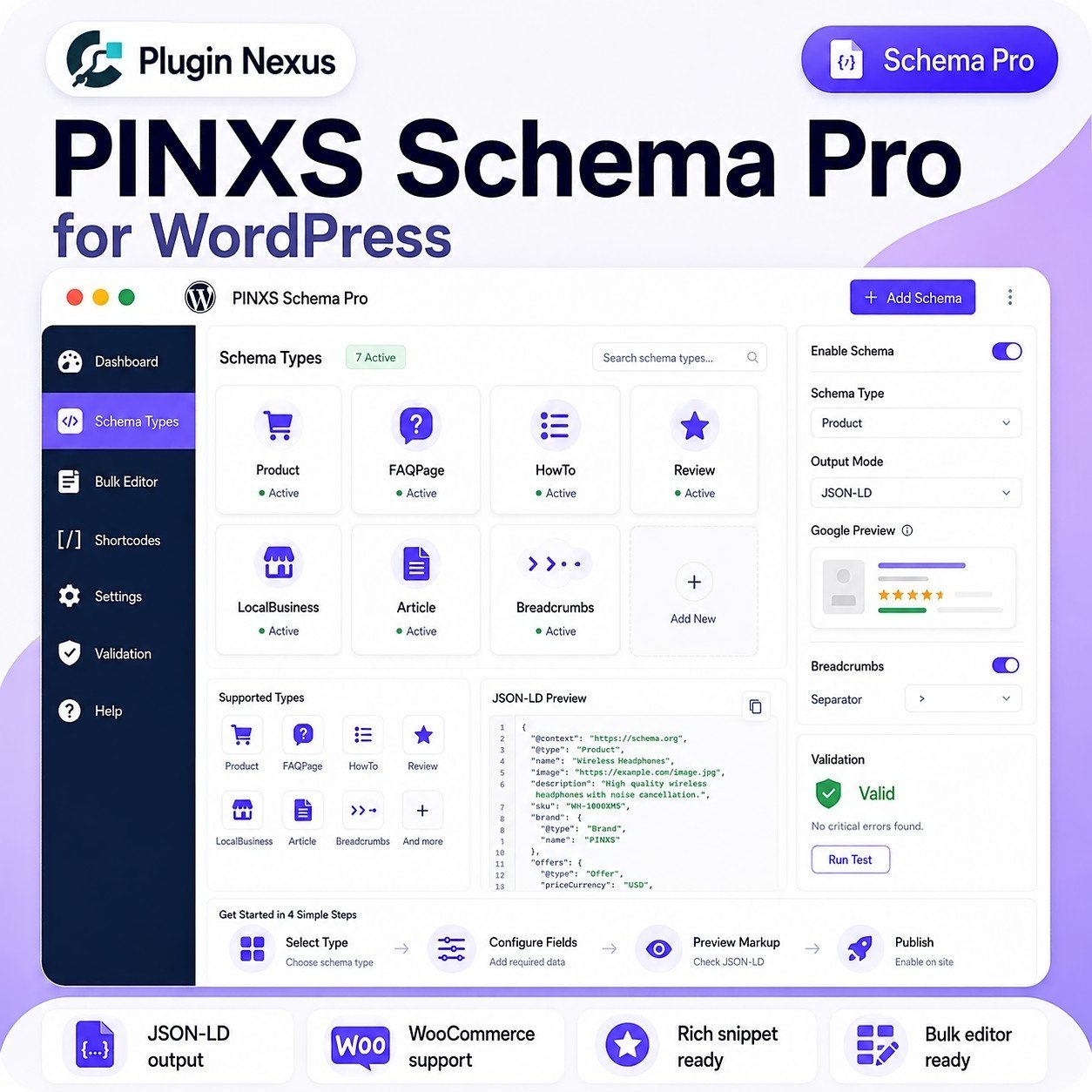
This demo page explains how to explore the PINXS Schema Pro demo. Schema Pro is mainly an admin-side WordPress plugin, so the most useful part of the demo is the read-only admin area where you can view schema settings, metaboxes and schema preview behaviour.
Demo login: demo / demopassword
What this demo shows
PINXS Schema Pro helps manage structured data inside WordPress. The demo includes public-facing schema examples and a read-only admin area where you can view the plugin controls without changing the demo site.
Schema output
View a public explanation page showing example JSON-LD style schema output and how structured data is used.
Post metabox
Open the demo article post in wp-admin and view how Schema Pro appears on a normal WordPress post.
Page metabox
Open the demo FAQ page and inspect the Schema Pro metabox for page-based schema examples.
Product metabox
Open the demo WooCommerce product and view the Product schema controls, including review and rating data.
How to use the admin demo
Log in with the demo account, then use the left WordPress admin menu to view the Schema Pro settings and the selected demo content.
1
Open the admin demo
Use the button below or visit the admin area directly, then log in with the demo credentials.
2
View Schema Pro settings
Open PINXS Schemas to view the main plugin settings and schema configuration areas.
3
Open the demo content
Use Posts, Pages or Products to open the selected demo item and view the Schema Pro metabox.
4
Review the schema preview
Use the visible preview areas to see how the plugin builds schema data from the page, post or product settings.
Demo content available in wp-admin
The demo account is limited to a small set of prepared content so visitors can focus on how Schema Pro works without seeing unnecessary WordPress screens.
Post
Demo Article Schema Post
Used to show article-style schema and how Schema Pro appears on a standard WordPress post edit screen.
Page
Demo FAQ Schema Page
Used to show page and FAQ-style schema examples on a normal WordPress page edit screen.
Product
Demo Software Plugin Product
Used to show Product schema, WooCommerce offer data and sample review/rating schema fields.
What is disabled in the public demo?
The public admin demo is designed for safe viewing only. You can inspect the screens, metaboxes and schema preview areas, but you cannot change the stored demo site data.
No saving
Update, publish, save draft and REST write actions are blocked for the public demo user.
No deleting
Trash, delete and bulk destructive actions are disabled to protect the prepared demo content.
No uploads
Media uploads and file changes are blocked so visitors cannot place files on the demo site.
View-only editor
The Gutenberg editor and Schema Pro fields are locked down so the demo can be inspected safely.
Public schema output page
Because Schema Pro is mostly configured inside WordPress admin, the live demo page is an explanation and output demo rather than an interactive front-end tool. It shows example schema output and visual metabox-style examples.
View the schema output explanation page
This page explains what schema markup is, shows example JSON-LD output, and links back to the admin demo where the real Schema Pro workflow can be viewed.
Ready to explore the demo?
Start with the public schema output page, then open the read-only admin demo to view the Schema Pro screens, metaboxes and prepared demo content.
Demo login: demo / demopassword